Getting Sensitive Information From A To B
Securely With Cryptlib
After a decent number of weeks of intense coding and testing, I have finally finished my latest program clTLS (sig) which makes good use of Cryptlib's session interface.
Unlike a web browser or CLI programs like curl, which rely heavily on the global public key infrastructure, clTLS is designed to do only one thing, getting sensitive information from A to B in the most secure way available. In order to achieve this reliable data exchange, clTLS connects only to those web servers (via TLS) which can be authenticated using known-good information that is available to the end-user.
clTLS blocks all attempts to connect to web servers that cannot positively be established as a secure counterpart for the end-user, and in this regard it is much more restrictive and reliable than the widely-used browser everyone uses day-by-day.
How To Establish a Secure Connection via TLS
Essentially, there are two very different mechanisms that clTLS uses to ensure that the connection is actually established with the correct web server a user wants to connect to. But both mechanisms require trustworthy information that must be stored in the user's home directory before any TLS data exchange can happen.
Fingerprint Authentication
The first one (fingerprints) is used to make the reliance on a global PKI completely obsolete. Once the end-user is in possession of a fingerprint (SHA-256) of the certificate, a web server uses in the TLS-handshake, it can be stored in the user's home directory as a sign of trust. It does not matter, whether the server certificate has been acquired via a public CA or is a self-signed certificate, the existence of the stored fingerprint authenticates the web server as long as it produces the matching certificate when a connection is being initiated.
Of course the trustworthiness of the fingerprint does not emanate from thin air, but there are numerous ways, how the fingerprint can be checked for a given server, especially if the server is administered in an institution or organisation the user has got a relation to already.
It might be clear that this method of identity check for the server will be done only for a few selected servers, where the risk of exposing sensitive information to a different one would be fatal. And fingerprint verification is the most secure and easy way to prevent this. The stored fingerprint will reliably secure the TLS connection, as long as the fingerprint file has not been deleted, which is the only way to enable the second method of authentication, a selectively trusted Certification Authority.
Know Your Trusted CA
The global public key infrastructure has its inherent problems.First, the sheer number of CAs trusted by browsers poses the risk of a rogue actor issuing a fake certificate for a web server. Because generally, any CA can issue a certificate for any web server domain. In contrast, cltls is build to restrict the number of trusted CAs to a very limited set of CAs that are positively known to work securely. This set of trusted CAs is under the end-user's sole control as only the few (checked) CA certificates that are stored in the user's home directory will be used to verify a server certificate, not the plethora of CAs build into the operating system by default.
For any user only a few CAs are relevant, so the effort to check and provide known-good CA certificates for storage pays off, especially if the user gets those information first-hand from someone he can trust.
And secondly, if any organisation or institution wish to use their own (self-signed) web server certificate and want to restrict the TLS data transfer to members of their own organisation or institution, with clTLS it is quite easy to configure the trusted use of an internal web server. No PKI is required, once the organisation's certificate is present in the directory "$HOME/.cryptlib/certs/trusted".
How clTLS Works In Detail
Beyond that, what makes the use of Cryptlib for TLS connections particularly interesting is the implementation of TLS-LTS, the idea of a long-term-support for TLS. If you've never heard of TLS-LTS, it's best to read the original paper about TLS-LTS .
TLS-LTS is a minimal, highly-secure subset of TLS 1.2, which is built into Cryptlib since January 2018. Cryptlib signals the availability of TLS-LTS by sending a single byte (0x1A) during the initial TLS handshake (as part of its Client Hello) and tries to negotiate known-safe parameters for the cipher suite to be used. In addition to that, TLS-LTS improves the security of the master secret by applying hashes of every packet that is exchanged in the handshake process between client and server (extended master secret).
When Cryptlib connects to servers that don't reply to the TLS-LTS extension it at least mandates the extended master secret, Encrypt-then-MAC and other implementation requirements that ensure safe communication via TLS over long lifetimes between clients and servers.
A Case Study
Let's use clTLS to connect to "microsoft.com" and see what happens.
Hmm, the program exits with the return code 10 which means ERR_CORRUPT.
Now we can repeat that with an option "-debug" to get more information about the issue.With Cryptlib in debug mode it turned out that the server (150.171.109.210) accepts the cipher suite "TLS_ECDHE_RSA_WITH_AES_128_GCM_SHA256" but the certificate it presents, is not a valid TLS certificate chain.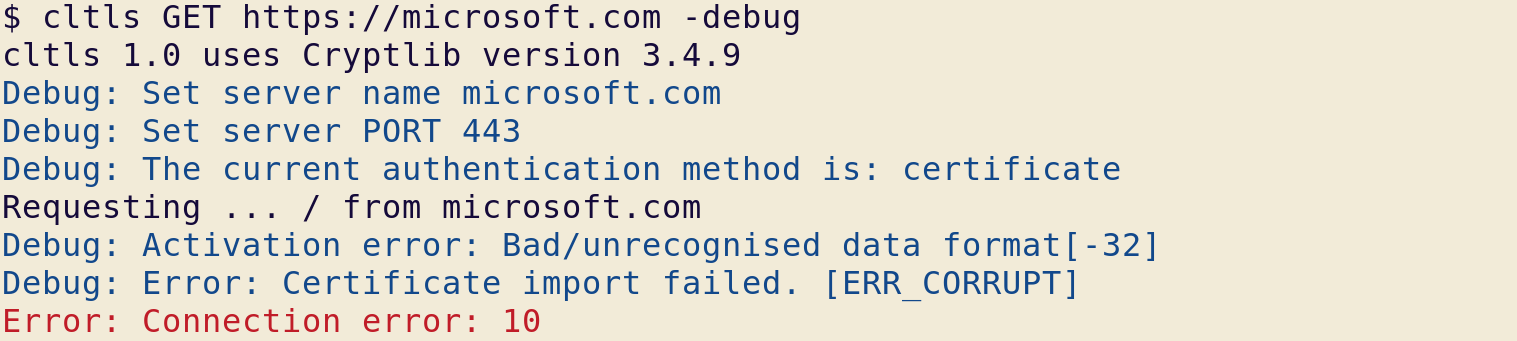
In a browser you'll never see the page for "microsoft.com" but are redirected to a different server "www.microsoft.com" which has its own certificate and a different IP address of course. To complicate matters even more "www.microsoft.com" is an alias for "www.microsoft.com-c-3.edgekey.net" and this is again an alias for "e13678.dscb.akamaiedge.net" with IP=23.39.42.97.
But at least using "www.microsoft.com" produces a TLS connection:
But the connection is still untrusted, because neither a fingerprint or a trusted top-level CA certificate is stored in the user's home directory. So, after storing the top-level certificate for "DigiCert Global Root G2" in a file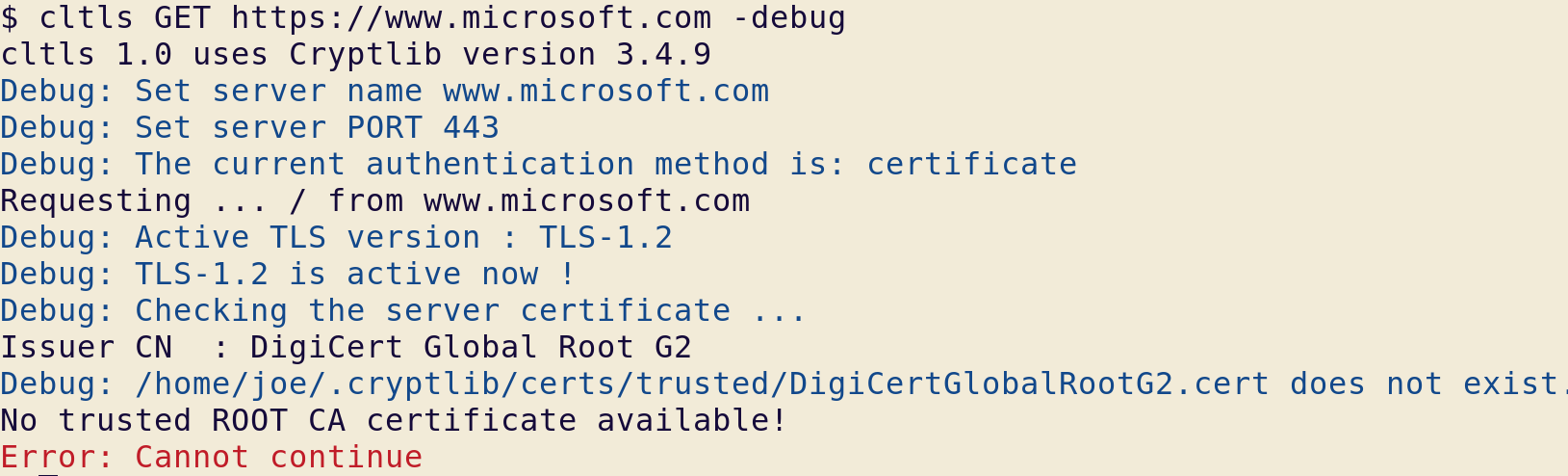
/home/joe/.cryptlib/certs/trusted/DigiCertGlobalRootG2.cert, the page is finally transferred and saved to the file system.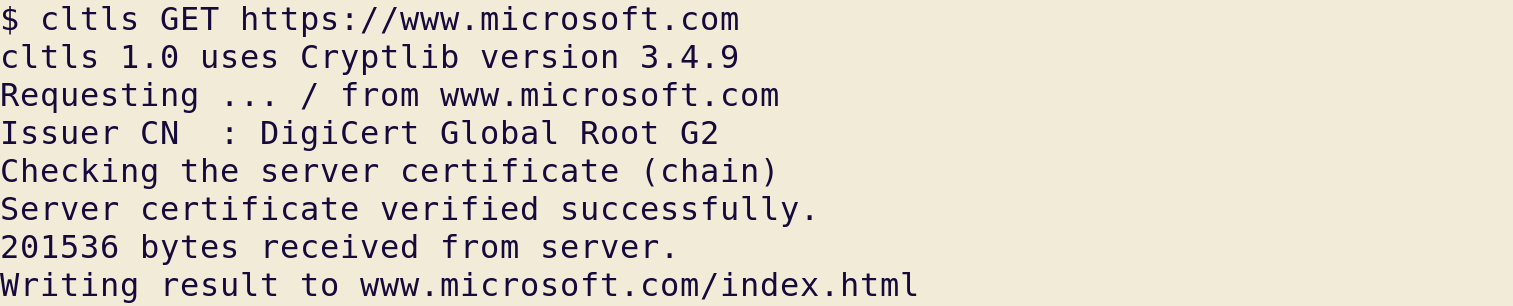
clTLS is build to safely navigate through such confusion.
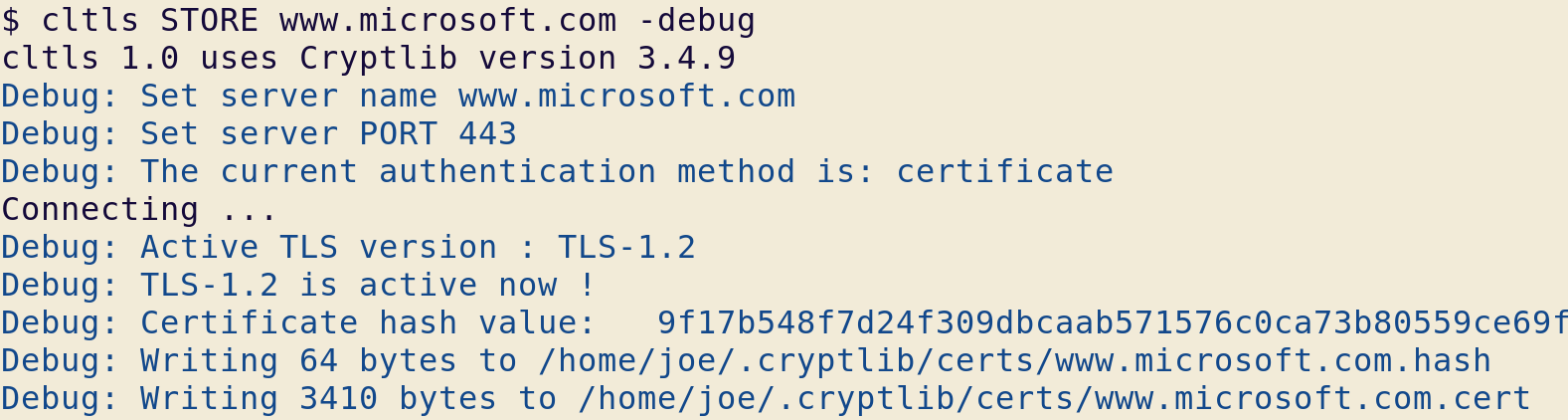
As you can see, only if the server name you actually want to use is successfully verified with a trusted CA certificate that is already present, the data transfer can continue. But you can also use the following to store a fingerprint. And needless to say, you must check the stored certificate thoroughly or delete both files altogether.
Handing Your Sensitive Data Over To The Server
Now, that you can control access to any server you wish to use, the PUT command allows you to send any type of information to that server using a TLS secured session. But as you will certainly be aware of, once your information arrives at the server it is further processed by whatever resource you decide to use as the target. clTLS secures your data transfer but not what is done to your data when it arrives at the server.
And that's another story altogether.